7 Best No-Install File Converters for 2026: Convert PDF to Excel in Seconds
Free PDF, Excel, HWP, JPG Converter (2026 Latest)
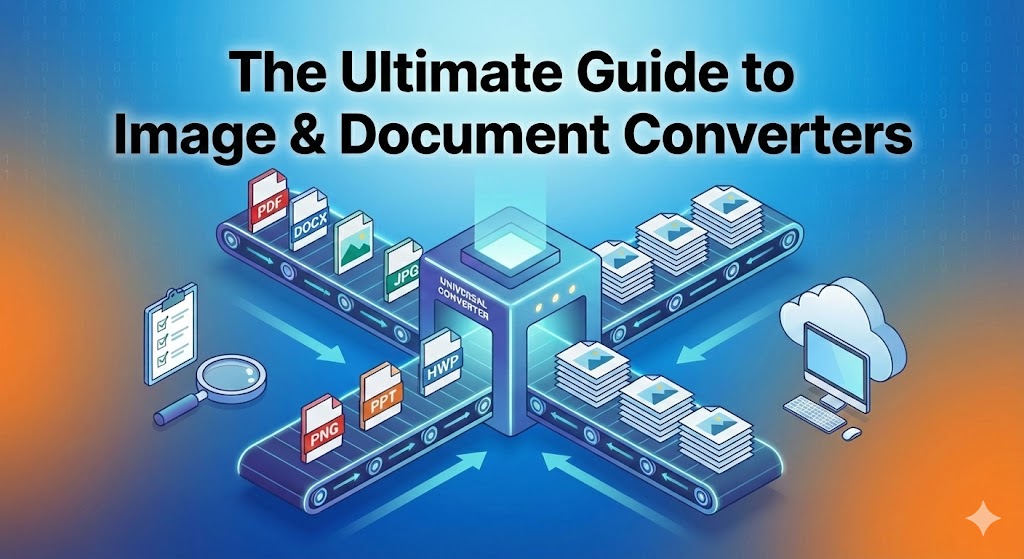
Need to convert PDF to Excel, Korean HWP files to Word, or WebP images to JPG but don’t know which tool to use? In 2026, we’ve compiled everything from free online converters that work directly in your browser without installation to premium software with professional-grade features. Only curated services with no signup required and clean interfaces are included.
- 1. Why File Conversion Matters – Use Cases
- 2. PDF Conversion Mastery (PDF ↔ Excel, Word, JPG)
- 3. Korean HWP ↔ Word DOCX Conversion Guide
- 4. Image Conversion (JPG, PNG, WebP, SVG)
- 5. All-in-One Platform Comparison (Convertio, Smallpdf, iLovePDF)
- 6. Quick Conversion with Chrome Extensions
- 7. Free vs Premium Converter Tools
- 8. File Security & Privacy Protection Guide
- 9. Frequently Asked Questions (FAQ)
1. Why File Conversion Matters – Use Cases
File format conversion has become essential in the digital age. Whether you need to analyze data from a PDF report in Excel, convert Korean government forms from HWP to Word for Mac compatibility, or change WebP images downloaded from the web to JPG, file conversion solves various compatibility issues.
Common Conversion Scenarios
- Work Efficiency: Convert PDF invoices to Excel for automatic tabulation
- Cross-Platform Compatibility: Convert Korean HWP files to DOCX for Mac editing
- Size Optimization: Convert large PNG images to compressed JPG
- Web Optimization: Convert JPG to next-gen WebP format for faster loading
- Editing Tasks: Convert PDF documents to Word for content modification
- Data Extraction: Extract text from scanned PDFs using OCR
Online conversion tools are convenient with no installation required, but for large files or sensitive documents, locally-installed programs that don’t upload to servers are safer. This guide covers both options.
2026 File Conversion Trends
- AI-Powered Conversion: Automatic layout recognition, table structure preservation, enhanced OCR
- Batch Processing: Convert hundreds of files at once
- Cloud Integration: Import directly from Google Drive, Dropbox
- Privacy Protection: Local browser conversion without server upload
- Next-Gen Formats: Support for WebP, AVIF, HEIC image formats
2. PDF Conversion Mastery (PDF ↔ Excel, Word, JPG)
PDF is the most widely used document format, but conversion to other formats is often needed for editing or data analysis. Here are the most popular free PDF conversion tools in 2026.
Top PDF Conversion Tools
Smallpdf – All-in-One PDF Solution
Free/Premium PDF Converter
Developer: Smallpdf AG | Users: 700M+ worldwide
Swiss-based online PDF platform offering 30+ PDF tools, usable without signup.
Website: smallpdf.com
- PDF → Excel: Convert complex tables to XLSX with layout preservation
- Excel → PDF: Convert Excel sheets to high-quality PDF
- PDF → Word: Convert to editable DOCX files
- Word → PDF: Convert Word documents to PDF
- PDF → JPG: Extract each page as an image
- PDF Compression: Reduce file size up to 90%
- PDF Editing: Modify text and images directly
- PDF OCR: Convert scanned documents to editable text
How to Use Smallpdf
1Visit Website
Go to smallpdf.com → Select conversion tool (e.g., PDF to Excel)
2Upload File
Drag & drop or import directly from Google Drive/Dropbox
3Convert
Conversion starts automatically (AI auto-detects table structure)
4Download
Download converted file (auto-deleted after 1 hour)
Pros and Cons
Pros:
- Free to use without signup (limited to 2 files/day)
- TLS encryption for secure file transfer
- All operating systems supported (Windows, Mac, Linux)
- Files auto-deleted after 1 hour
- Intuitive interface
Cons:
- Free version limited to 2 files per day
- Large files (>5GB) require premium plan
- OCR features limited (premium recommended)
iLovePDF – Completely Free PDF Tools
Free PDF
Developer: iLovePDF | Users: Millions
Spain-based completely free PDF online service for quick PDF tasks without complex processes.
Website: ilovepdf.com
- Merge PDF: Combine multiple PDFs into one
- Split PDF: Separate by pages
- Compress PDF: Reduce size while maintaining quality
- Office → PDF: Convert Word, Excel, PPT to PDF
- PDF → JPG: Extract each page as image
- Add Watermark: Insert watermarks for document protection
Other Recommended PDF Converters
- Adobe Acrobat Online: Original PDF creator, highest quality (free trial available)
- Soda PDF: Fast conversion, cloud storage support
- HiPDF: Strong batch conversion features
- PDF24: German-based, excellent privacy protection
Accountants/Finance: Convert PDF invoices to Excel for auto-tabulation. Students/Researchers: Convert PDF papers to Word for citation editing. Marketers: Convert PDF reports to PowerPoint for presentations.
3. Korean HWP ↔ Word DOCX Conversion Guide
Korean HWP (Hangul Word Processor) files commonly used in Korea face compatibility issues on Mac and internationally. Converting to Word (DOCX) enables editing anywhere in the world.
Microsoft Official Hangul Converter
Free Document
Developer: Microsoft | Platform: Windows only
Official Microsoft tool for Hangul file conversion, allowing Word to directly open HWP files and save as DOCX.
Download: Microsoft Official Download Center
- HWP 5.0 Support: Compatible with Hangul 5.0 and above
- Batch Conversion: Convert multiple files by folder
- Layout Preservation: Maintains fonts, tables, image positions
- Word Integration: Open HWP files directly in Word
How to Use
1Install Converter
Download installer from Microsoft Download Center and run
2Open in Word
Launch Microsoft Word → File → Open → Select HWP file
3Save as DOCX
File → Save As → Select DOCX format
Korean-specific fonts (Batang, Dotum, etc.) may display differently in Word. Always check layout after conversion. Complex tables or equations may break partially.
Polaris Office Web – Online Hangul Converter
Free Document
Developer: Polaris Office | Platform: Web Browser
Online office platform to open, edit HWP files, or convert to DOCX without installation.
Website: hwp.polarisoffice.com
- Online Editing: Edit HWP files directly in browser
- DOCX Export: Save as Word format after editing
- Cloud Storage: Google Drive integration
- Real-time Collaboration: Multiple users can edit simultaneously
Other Online HWP Converters
- FreeConvert: Convert HWP to PDF, DOCX, TXT, etc.
- CloudConvert: 200+ formats supported, API provided
- CoolUtils: Batch conversion features
- AnyConv: Fast conversion speed
Mac Users: Need to edit Hangul files on Mac. International Students: Edit Korean documents received from Korea abroad. Government Submissions: Convert official forms to Word for completion.
4. Image Conversion (JPG, PNG, WebP, SVG)
Convert WebP images downloaded from the web to JPG, PNG with transparent backgrounds to WebP – tools that solve all your image conversion needs in one place.
iLoveIMG – Image Conversion Specialist
Free Image
Developer: iLoveIMG | Users: Millions worldwide
Sister service to iLovePDF, offering various image editing features including conversion, compression, and resizing.
Website: iloveimg.com
- JPG Conversion: PNG, GIF, TIFF, RAW, WebP → JPG
- PNG Conversion: JPG, GIF, WebP → PNG (preserves transparency)
- WebP Conversion: JPG, PNG → WebP (80% size reduction)
- Image Compression: Reduce file size while maintaining quality
- Resize: Change size by pixels, percentage, or aspect ratio
- Batch Processing: Convert dozens of images at once
How to Use
1Select Conversion Tool
Visit iloveimg.com → Select “Convert to JPG” or “Convert to PNG”
2Upload Images
Drag & drop multiple images simultaneously
3Convert
Click “Convert to JPG” → Auto-conversion starts
4Download
Download individually or batch download as ZIP
Vivoldi WebP Converter – WebP Specialist
Free Image
Developer: Vivoldi | Specialty: WebP Conversion
Specialized tool for converting next-gen image format WebP to JPG, PNG, GIF, or vice versa.
Website: vivoldi.com/tools/webp-converter
- WebP → JPG/PNG: Convert WebP to universal formats
- JPG/PNG → WebP: Reduce size up to 80%
- Quality Selection: Adjust compression (lossless/lossy)
- Batch Conversion: Process multiple files simultaneously
WebP is a next-gen image format developed by Google, providing 25-35% smaller file sizes than JPG/PNG with the same quality. Effective for improving website loading speed, but some older browsers or image editing programs don’t support it, requiring JPG/PNG conversion.
Chrome Extensions for Quick Image Conversion
- Image Converter – WebP JPG Converter: Instant conversion via right-click
- Save Image as Type: Choose format when downloading
- WEBP to JPG: Auto-detect and convert WebP
Bloggers/Marketers: WebP conversion for website optimization. Designers: JPG/PNG conversion for client submissions. General Users: Solving compatibility issues (WebP to universal formats).
5. All-in-One Platform Comparison (Convertio, Smallpdf, iLovePDF)
If you frequently convert various file types, one all-in-one platform is sufficient. Comparing the 3 most popular platforms in 2026.
Convertio – 309 Formats Supported
Free/Premium All-in-One
Developer: Convertio | Supported Formats: 309+
All-in-one platform for converting virtually any file format including documents, images, audio, video, ebooks, and archives.
Website: convertio.co
- 309 Formats: PDF, DOCX, XLSX, JPG, PNG, MP4, MP3, and all major formats
- Cloud Integration: Import directly from Dropbox, Google Drive
- API Provided: Automation API for developers
- OCR Support: Convert scanned documents to text
- Batch Conversion: Process up to 100 files simultaneously
Top 3 Platform Comparison
| Platform | Formats | Free Limits | Premium Price | Specialty |
|---|---|---|---|---|
| Convertio | 309 | 100MB, 10/day | $9.99/mo | Most formats supported |
| Smallpdf | 30 (PDF-focused) | 2/day | $9/mo | Strong PDF editing |
| iLovePDF | 20 (PDF-focused) | Unlimited (limited features) | $6/mo | Completely free, no ads |
Platform Recommendations by Use Case
PDF-Centric Work
Smallpdf – 30 PDF tools, professional editing/compression/merging
Need Completely Free
iLovePDF – Unlimited use without ads, basic features sufficient
Various Format Conversion
Convertio – 309 formats, video/audio support
Large Files
Convertio Pro – Up to 10GB files, batch 100
Most platforms offer free trial periods. If you only need premium for a specific project, use the 7-day free trial and cancel immediately after. Annual subscriptions are also 40% cheaper than monthly.
6. Quick Conversion with Chrome Extensions
If you convert files frequently, install Chrome extensions to convert with just a right-click. Work efficiently without leaving your browser.
Recommended Chrome Extensions
Image Converter – WebP JPG Converter
Free Image
Developer: Third-party | Users: 100K+
Right-click any image on a webpage to instantly convert and save to desired format (JPG, PNG, WebP).
Install: Chrome Web Store
- Right-click Conversion: Image → Right-click → Select format → Save
- Offline Operation: Converts locally without server upload
- Quality Selection: Adjust JPG compression level
- Batch Download: Convert all images on page at once
Other Useful Extensions
- Save Image as Type: Auto format conversion on download
- WEBP to JPG: Auto-detect and convert WebP images
- Print Friendly & PDF: Convert web pages to clean PDF
- Full Page Screen Capture: Capture entire page as PNG
How to Install Extensions
1Visit Chrome Web Store
Chrome browser → Type chrome://extensions in address bar
2Search Extension
Type “Image Converter” in search box → Select desired extension
3Install
Click “Add to Chrome” → Confirm permissions and install
4Use
Right-click image → Select “Save as JPG” or “Save as PNG”
Never install extensions from sources other than Chrome Web Store. Before installing, check ratings, reviews, and user count. Avoid extensions requesting excessive permissions (like reading all website data).
7. Free vs Premium Converter Tools
Free tools are sufficient for most tasks, but premium plans are more efficient for business use or large file processing. Comparing free vs premium differences.
Pros and Cons of Free Tools
Pros:
- No cost
- Often no signup required
- Sufficient for simple tasks
- Can compare and use multiple platforms
Cons:
- File size limits (usually under 100MB)
- Daily usage limits
- Advanced features limited (OCR, batch processing)
- Ads displayed (some services)
- Slower conversion (waiting queue)
When Premium Plans Are Needed
- Business Use: Need to convert dozens of files daily
- Large Files: Working with PDFs, images over 100MB
- Batch Processing: Converting hundreds of files at once
- OCR Required: Converting scanned documents to editable text
- API Integration: Building automated workflows
- Priority Processing: Instant conversion without waiting
Best Value Premium Plans
| Platform | Monthly Price | Annual Price | Main Benefits | Recommended For |
|---|---|---|---|---|
| iLovePDF Premium | $6/mo | $48/yr | Unlimited conversions, OCR | Best value |
| Smallpdf Pro | $9/mo | $84/yr | 30 PDF tools | PDF professionals |
| Convertio Pro | $9.99/mo | $99/yr | 309 formats, 10GB | Various formats needed |
| Adobe Acrobat Pro | $19.99/mo | $239/yr | Highest quality, pro editing | Professionals |
Most premium platforms offer 7-14 day free trials. Subscribe only when you have a big project and cancel right after completion to minimize costs. Also, Black Friday and year-end sales can offer up to 50% discounts, so timing matters.
8. File Security & Privacy Protection Guide
Online conversion tools are convenient but require caution as files must be uploaded to servers. Learn how to convert sensitive documents safely.
Online Converter Security Checklist
- HTTPS Check: Verify padlock icon in address bar (TLS encryption)
- Auto-Delete Policy: Check when uploaded files are deleted (usually 1-24 hours)
- Server Location: European (GDPR compliant), US, Korean servers relatively safe
- Privacy Policy: Verify files aren’t shared with third parties
- Reputation Check: User reviews, operation period, security certifications
Documents containing social security numbers, bank accounts, passwords, company confidential documents, NDA materials, medical records, legal documents should avoid online conversion tools. Use locally-installed programs instead.
How to Safely Convert Sensitive Files
1Use Local Conversion Programs
Install on PC: Adobe Acrobat DC, Microsoft Office, LibreOffice
2Chrome Extensions (Offline Operation)
Use extensions that convert locally in browser without server upload
3Open Source Software
Use free open-source programs: LibreOffice, GIMP, Inkscape
4Use VPN
If online conversion unavoidable, protect IP address with VPN
Trusted Platform Security Ratings
| Platform | Security Rating | Auto-Delete | GDPR Compliant | Notes |
|---|---|---|---|---|
| Smallpdf | ⭐⭐⭐⭐⭐ | 1 hour | ✅ | Swiss-based, ISO 27001 |
| iLovePDF | ⭐⭐⭐⭐ | 2 hours | ✅ | Spain-based |
| Adobe Acrobat Online | ⭐⭐⭐⭐⭐ | Instant | ✅ | Industry standard, SOC 2 |
| Convertio | ⭐⭐⭐⭐ | 24 hours | ✅ | Russia-based |
Click the “Delete File” button immediately after online conversion to delete without waiting. Premium plans use priority processing servers with enhanced security.
9. Frequently Asked Questions (FAQ)
Most conversion tools provide AI-based table recognition to preserve layout as much as possible. However, complex merged cells or multi-column layouts may break partially, so always check after conversion and manually adjust. Smallpdf Pro and Adobe Acrobat have the highest table recognition accuracy.
Yes, Hangul-specific fonts (Batang, Dotum, Gungseo, etc.) display differently in Word. Before conversion, change to universal fonts like Arial or Times New Roman in Hangul, or reset fonts in Word after conversion. Polaris Office preserves Hangul fonts relatively well.
WebP is already compressed, so slight quality degradation may occur when converting to JPG. However, using high-quality conversion tools like iLoveIMG or Vivoldi makes differences virtually imperceptible to the naked eye. If original image is high-resolution, converted version will still be usable.
Most are under 100MB. Smallpdf free version supports up to 5GB but limits to 2 files/day. Convertio free is 100MB, iLovePDF is 25MB limit. For large files, use premium plans or installed programs.
Yes, with tools that have OCR (Optical Character Recognition). Adobe Acrobat, Smallpdf Pro, ABBYY FineReader support OCR. However, handwriting or low-quality scans have lower recognition rates, so scanning at high resolution (300dpi+) is important.
Most tools keep original filenames and only change extensions. Example: document.pdf → document.xlsx. Some tools automatically add numbers (document_1.xlsx). Convertio allows users to set filename rules.
Basically yes, but conversion complexity also affects speed. A 100-page text PDF converts quickly, but even 10 pages with high-res images takes longer. Free services have waiting queues making them slower. Premium plans use priority processing servers, averaging 2-3x faster.
Purchase Mac version of Hangul program (Hancom Office for Mac), or convert to DOCX with online conversion tools and open in Mac’s Pages or Microsoft Word. Free method is using Polaris Office Web.
Smallpdf auto-deletes after 1 hour, iLovePDF after 2 hours, Convertio after 24 hours. Adobe Acrobat Online provides instant delete option. For sensitive files, manually click “Delete File” button immediately after conversion.
Extensions that operate offline (local conversion) are safe without server upload. However, be cautious of extensions requesting “read all website data” permissions. Choose extensions from Chrome Web Store with 4+ star ratings and 10K+ users, and regularly delete unused extensions.
Conclusion
In 2026, file conversion is no longer a complex task. With just a browser, you can convert PDF to Excel, Hangul to Word, WebP to JPG in seconds. All tools introduced in this guide are verified services used by millions.
For simple tasks, free online tools (iLovePDF, Smallpdf free) are sufficient. For business or large files, premium plans or installed programs are recommended. Always use local conversion programs for sensitive documents to maintain security.
General Users: iLovePDF (free) + Chrome Image Converter Extension
Students/Researchers: Smallpdf Free + Polaris Office Web
Office Workers: Smallpdf Pro ($9/mo) + Microsoft Hangul Converter
Designers: iLoveIMG + Vivoldi WebP Converter
Developers: Convertio Pro ($9.99/mo, API provided)
Professionals: Adobe Acrobat Pro ($19.99/mo, highest quality)
Don’t worry about file formats anymore – convert freely anytime, anywhere with these tools!