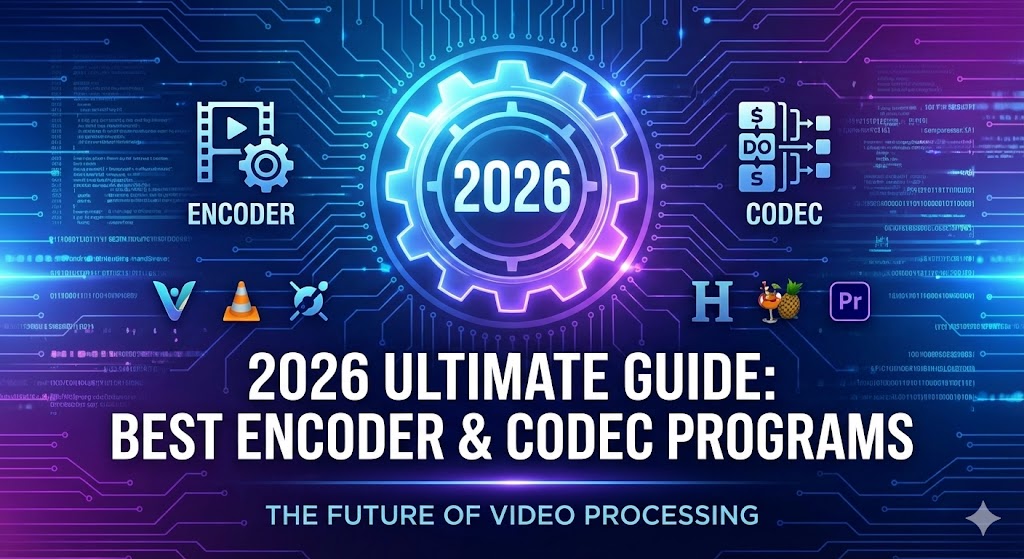
2026 Complete Guide: Best Encoder and Codec Programs – From Free to Professional
2026 Complete Guide: Best Encoder and Codec Programs
Perfect video and audio file conversion – From free to professional tools
Introduction: Why Encoders and Codecs Matter
In the digital media age, handling video and audio files has become part of everyday life. Whether you’re uploading videos to YouTube, converting files for smartphone playback, or efficiently storing large files, encoders and codecs are essential tools.
However, many people feel overwhelmed by questions like “Which program should I use?”, “Are free programs sufficient?”, and “What settings are optimal?” This guide covers everything from basic concepts of encoders and codecs to the best program recommendations and practical tips, making it accessible for both beginners and professionals.
As of 2026, technological advances have brought more efficient codecs (AV1, H.265, etc.) and user-friendly encoder programs. This article provides the most practical information reflecting the latest trends.
1. What Are Encoders and Codecs?
1.1 Codec Definition
Codec is short for ‘Coder-Decoder’ or ‘Compressor-Decompressor’, referring to technology that compresses and decompresses digital media data. Original video or audio files are very large, so compression is necessary to save storage space and facilitate internet transmission.
For example, an uncompressed 1-hour 4K video would require hundreds of gigabytes, but using H.264 or H.265 codec can reduce it to just a few gigabytes.
Types of Codecs:
- Lossy Compression Codecs: Significantly reduce file size but lose some data (e.g., H.264, MP3)
- Lossless Compression Codecs: Compress while maintaining original quality (e.g., FLAC, ProRes)
1.2 Encoder Definition
Encoder is software or hardware that actually applies a codec to compress files. In other words, if a codec is the “compression method,” an encoder is the “tool” that executes it.
For example, HandBrake is a program that encodes video using H.264 codec, and FFmpeg is a powerful command-line encoder supporting various codecs.
1.3 Difference Between Codec and Encoder
| Category | Codec | Encoder |
|---|---|---|
| Definition | Compression/decompression method (algorithm) | Program that executes compression |
| Examples | H.264, H.265, VP9, AAC, MP3 | HandBrake, FFmpeg, Adobe Media Encoder |
| Role | Defines how data is compressed | Actually converts files using codec |
2. Why Do You Need Encoders and Codecs?
Encoders and codecs are essential for the following reasons:
- File Size Reduction: Original video or audio files are very large. Encoding can reduce file size by over 90%, saving storage space and bandwidth.
- Improved Compatibility: Convert to formats playable on various devices and platforms. For example, convert MKV files that won’t play on iPhone to MP4.
- Streaming Optimization: Streaming platforms like YouTube, Twitch, and Netflix require specific codecs and settings. Proper encoding ensures smooth playback without buffering.
- Quality Control: Balance file size and quality with appropriate bitrate and resolution settings.
- Editing Efficiency: Convert to intermediate codecs that are easier to work with in video editing software to improve editing performance.
- Archiving: Use lossless codecs to create files for long-term storage while maintaining original quality.
For example, if a wedding video’s original file is 100GB, it’s difficult to store or share as-is. Encoding with H.265 codec can reduce it to under 10GB with minimal quality loss, making it easy to share with family.
3. Popular Video Encoder Programs
3.1 HandBrake (Free, Open Source)
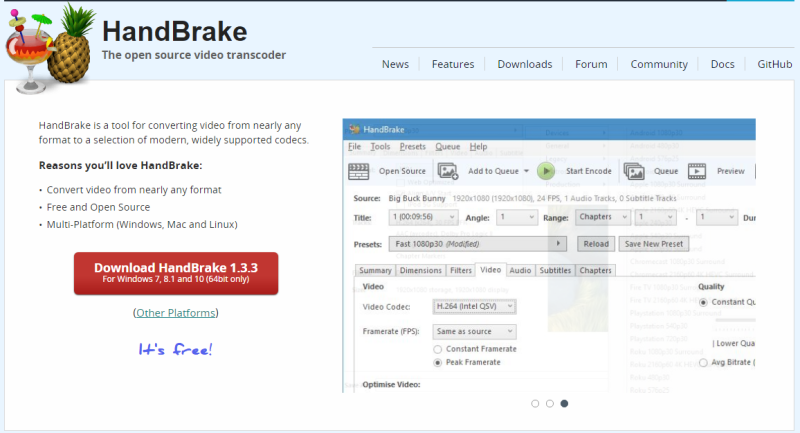
HandBrake is one of the most popular free video encoders, offering an easy-to-use interface and powerful features.
Key Features:
- Supports Windows, Mac, and Linux
- Supports various codecs including H.264, H.265, VP9, AV1
- Provides presets (web, device-optimized)
- Batch encoding (process multiple files simultaneously)
- Video filters (deinterlacing, crop, rotate, etc.)
- Subtitle and audio track management
Advantages:
- Completely free with no ads
- Intuitive GUI easy for beginners
- Active community and continuous updates
Disadvantages:
- Limited advanced features for professionals
- Some commercial codecs not supported
Recommended For: General users, home video conversion, YouTube upload preparation
Official Website: handbrake.fr
3.2 Adobe Media Encoder (Premium)
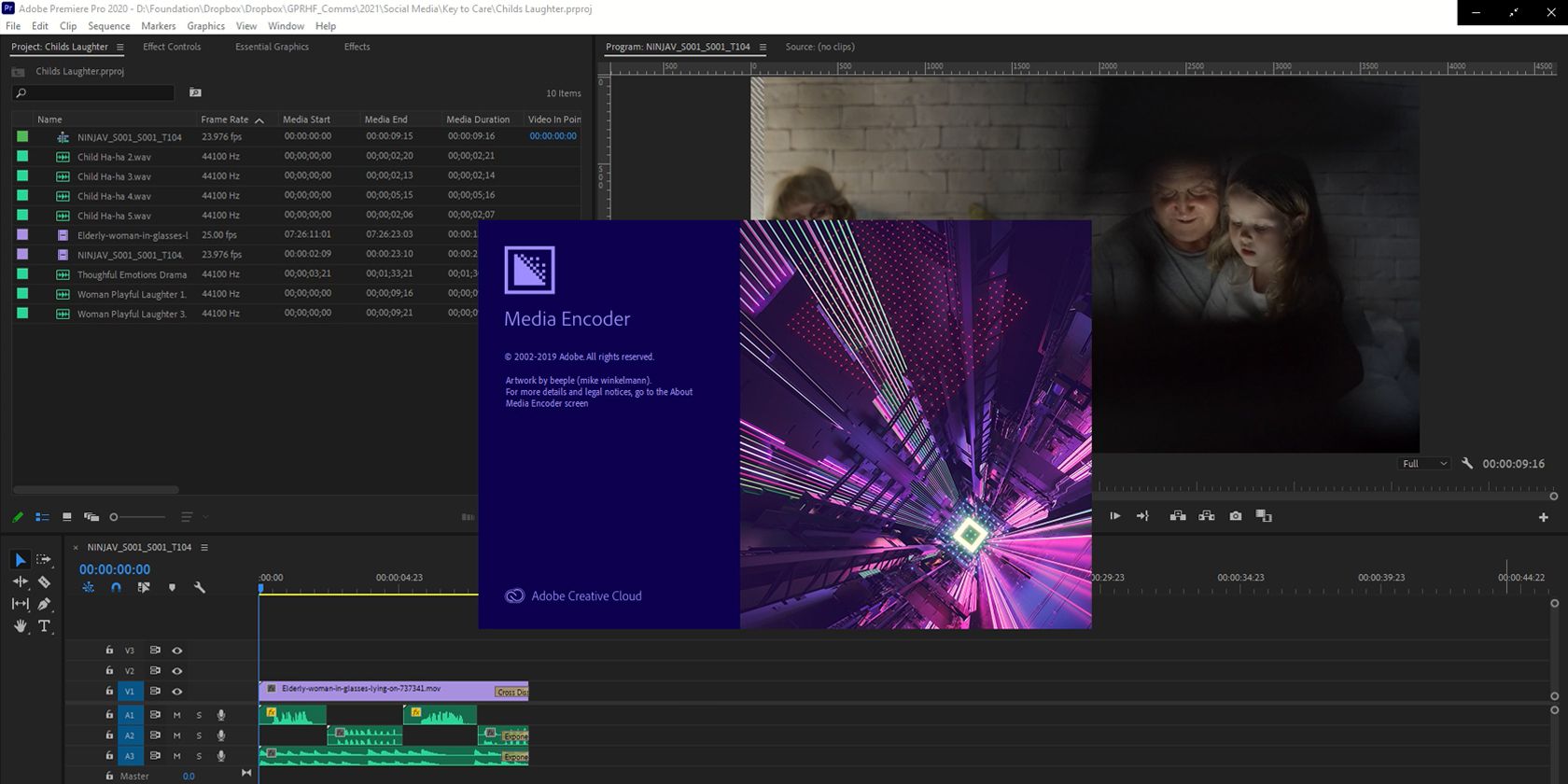
Adobe Media Encoder is part of Adobe Creative Cloud, a professional encoder that integrates perfectly with Premiere Pro and After Effects.
Key Features:
- Supports almost all video and audio formats
- Seamless integration with Adobe programs
- Watch folders (automatic encoding)
- Proxy file creation
- Social media platform-specific presets
- GPU acceleration support
Advantages:
- Professional-level advanced features
- Diverse output options and customization
- Background rendering for improved workflow efficiency
Disadvantages:
- Requires paid subscription (from $20.99/month)
- Can be complex for beginners
- Uses significant system resources
Recommended For: Professional video creators, post-production studios
Official Website: adobe.com
3.3 FFmpeg (Command Line)

FFmpeg is the most powerful and flexible open-source multimedia framework, operating through command-line interface.
Key Features:
- Supports almost all video/audio formats
- Can perform all tasks: conversion, streaming, recording, filtering
- Scripting and automation support
- Advanced filters and effects
- Hardware-accelerated encoding (NVENC, QuickSync, etc.)
Advantages:
- Completely free and open source
- Unlimited customization possible
- Optimal for batch processing and automation
- Used as backend for many other programs
Disadvantages:
- Requires command-line knowledge (steep learning curve)
- No GUI (requires separate frontend)
Recommended For: Developers, advanced users, automation needs
Official Website: ffmpeg.org
Example Command:
ffmpeg -i input.mp4 -c:v libx265 -crf 28 -c:a aac -b:a 128k output.mp4
(Example of encoding video with H.265 codec)
3.4 DaVinci Resolve (Free/Paid)
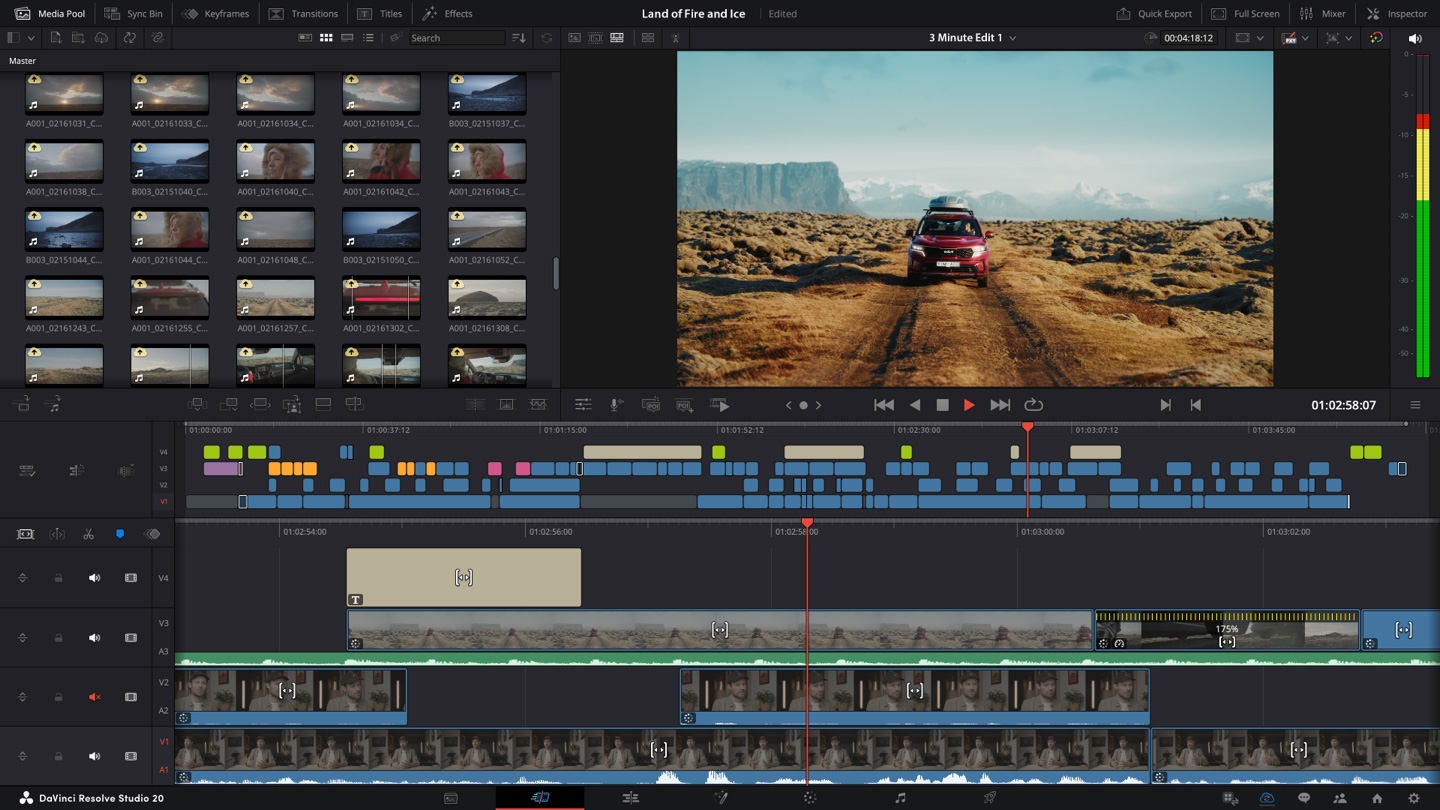
DaVinci Resolve is an integrated solution providing video editing, color grading, and audio mixing, with powerful encoding capabilities included.
Key Features:
- Professional-grade video editing and encoding
- Most features available in free version
- Supports H.264, H.265, ProRes, DNxHD, etc.
- GPU-accelerated rendering
- Customizable render presets
Advantages:
- Free version is very powerful
- Handle editing and encoding in one place
- Professional-quality output
Disadvantages:
- Free version has some codec limitations (H.265 export restricted)
- Learning curve exists
- High system requirements
Recommended For: Users who also do video editing, color grading needs
Official Website: blackmagicdesign.com
3.5 Any Video Converter (Free)

Any Video Converter is a free program for simple and fast video conversion.
Key Features:
- Supports various input/output formats
- Basic editing features (trim, crop, effects)
- Online video download feature
- DVD ripping support
Advantages:
- Very simple to use
- Free version available
Disadvantages:
- Free version has limited features and contains ads
- Lacks features for advanced users
Recommended For: Simple conversion tasks, beginners
Official Website: any-video-converter.com
4. Audio Encoder Programs
4.1 Audacity (Free)
Audacity is the most popular free open-source audio editing and encoding program.
Key Features:
- Multi-track audio editing
- Supports various formats: MP3, WAV, FLAC, OGG, AAC
- Various effects: noise removal, normalization, equalizer
- Plugin support (VST, LV2, LADSPA)
- Batch processing feature
Advantages:
- Completely free and open source
- Easy-to-use interface
- Cross-platform (Windows, Mac, Linux)
Disadvantages:
- Limited features compared to professional DAWs
- Somewhat outdated UI
Recommended For: Podcast creation, basic audio editing and conversion
Official Website: audacityteam.org
4.2 foobar2000 (Free)
foobar2000 is an audio player and powerful audio converter.
Key Features:
- Play and convert almost all audio formats
- High-quality resampling
- Tag editing and file management
- ReplayGain support
- Extensive customization and plugins
Advantages:
- Completely free
- Very lightweight and fast
- Optimized features for audiophiles
Disadvantages:
- Windows only
- Initial setup can be somewhat complex
Recommended For: Audiophiles, music library management and conversion
Official Website: foobar2000.org
4.3 XLD (Mac, Free)
X Lossless Decoder (XLD) is a Mac-exclusive lossless audio decoder and encoder.
Key Features:
- CD ripping and audio conversion
- Supports various formats: FLAC, ALAC, WAV, AAC
- Accurate ripping (AccurateRip support)
- Cue sheet splitting
Advantages:
- Completely free
- Accurate CD ripping
- Simple and clean interface
Disadvantages:
- Mac only
- No editing features (conversion focused)
Recommended For: Mac users, CD ripping, lossless audio conversion
Official Website: tmkk.undo.jp/xld
5. Major Codec Types
5.1 Video Codecs
H.264 (AVC)
H.264 is the most widely used video codec, offering excellent compression efficiency and broad compatibility.
- Advantages: Supported by almost all devices, stable performance, hardware acceleration support
- Disadvantages: Lower compression rate than H.265
- Usage Examples: YouTube, Blu-ray, streaming services, mobile devices
H.265 (HEVC)
H.265 is the successor to H.264, capable of reducing file size by about 50% at the same quality.
- Advantages: High compression rate, optimal for 4K/8K video, HDR support
- Disadvantages: Slow encoding speed, not supported on some older devices, licensing costs
- Usage Examples: 4K streaming, Netflix, Apple TV+, high-resolution storage
VP9
VP9 is a royalty-free codec developed by Google, offering compression efficiency similar to H.265.
- Advantages: Free license, excellent web browser support, compression rate similar to H.265
- Disadvantages: Slow encoding speed, limited hardware support
- Usage Examples: YouTube (especially 4K), Chrome, Firefox
AV1
AV1 is a next-generation royalty-free codec, offering 30% more efficient compression than H.265.
- Advantages: Highest compression rate, free license, future-oriented
- Disadvantages: Very slow encoding speed, hardware support in early stages, limited software support
- Usage Examples: YouTube (some 4K/8K), Netflix (testing), next-generation streaming
ProRes
Apple ProRes is a professional intermediate codec offering high quality and fast decoding.
- Advantages: Excellent quality, optimized for editing, multiple quality levels
- Disadvantages: Very large file size, mainly used in Mac ecosystem
- Usage Examples: Video editing (intermediate files), post-production, archiving
5.2 Audio Codecs
AAC (Advanced Audio Coding)
AAC is the successor to MP3, offering better sound quality and compression rate.
- Advantages: Superior quality to MP3, broad compatibility, optimal for streaming
- Disadvantages: Not lossless
- Usage Examples: iTunes, YouTube, streaming services, mobile devices
- Recommended Bitrate: 128-256 kbps
MP3
MP3 is the oldest and most widely used audio codec.
- Advantages: Supported by almost all devices, small file size
- Disadvantages: Lower quality than AAC (at same bitrate)
- Usage Examples: Music libraries, general audio files
- Recommended Bitrate: 192-320 kbps
FLAC (Free Lossless Audio Codec)
FLAC is a lossless compression audio codec that perfectly preserves original quality.
- Advantages: Perfect sound quality, free and open source, excellent metadata support
- Disadvantages: Large file size (50-60% of original), not supported on some devices
- Usage Examples: Audiophile collections, archiving, high-quality playback
Opus
Opus is a modern open-source audio codec offering excellent quality even at low bitrates.
- Advantages: Best compression efficiency, royalty-free, optimized for both voice and music
- Disadvantages: Relatively new codec, not supported on some older devices
- Usage Examples: VoIP, web audio, streaming, Discord, WhatsApp
| Codec | Compression Efficiency | Encoding Speed | Compatibility | License | Recommended Use |
|---|---|---|---|---|---|
| H.264 | Medium | Fast | Very High | Paid | General, compatibility priority |
| H.265 | High | Slow | High | Paid | 4K, file size savings |
| VP9 | High | Slow | Medium | Free | Web streaming |
| AV1 | Very High | Very Slow | Low (increasing) | Free | Future-oriented, best compression |
| ProRes | Low | Very Fast | Medium | Paid | Editing, post-production |
6. Encoder Program Selection Guide
6.1 Recommendations for Beginners
If you’re new to video encoding, choosing simple and intuitive programs is important.
Best Choice: HandBrake
- Free with simple installation and usage
- Various presets provided (device-specific, web optimized, etc.)
- Can handle most common conversion tasks
Alternative: Any Video Converter
- Even simpler interface
- Drag and drop approach
Audio Beginners: Audacity
- Simple audio editing and conversion
- Rich tutorials and community
6.2 Recommendations for Professionals
Professional work requires advanced features and fine control.
Best Choice: Adobe Media Encoder
- Perfect integration with Adobe ecosystem
- Nearly unlimited customization
- Suitable for commercial projects
Alternative: FFmpeg
- Scripting and automation possible
- Complete control and flexibility
- Free and open source
Editing Integration: DaVinci Resolve Studio
- Editing, color, and encoding in one place
- Professional-quality output
6.3 Recommendations by Purpose
YouTube Upload
- Program: HandBrake or Adobe Media Encoder
- Codec: H.264
- Settings: 1080p or 4K, bitrate 8-15 Mbps (1080p), AAC audio 128-192 kbps
Archiving (Long-term Storage)
- Program: FFmpeg or DaVinci Resolve
- Codec: H.265 or ProRes (if lossless needed)
- Settings: High bitrate, maintain original resolution
Mobile Devices
- Program: HandBrake
- Codec: H.264 (compatibility) or H.265 (space savings)
- Settings: 720p or 1080p, bitrate 2-5 Mbps
Music Library Management
- Program: foobar2000 (Windows) or XLD (Mac)
- Codec: FLAC (lossless) or AAC/MP3 (space savings)
Streaming (Twitch, OBS)
- Program: OBS Studio (built-in encoder) or hardware encoder (NVENC)
- Codec: H.264
- Settings: 720p 60fps or 1080p 30fps, bitrate 3-6 Mbps
7. Encoding Settings Tips
7.1 Bitrate Settings
Bitrate is the amount of data processed per second, directly affecting file size and quality.
Recommended Video Bitrate Values:
| Resolution | Frame Rate | H.264 Bitrate | H.265 Bitrate |
|---|---|---|---|
| 720p (HD) | 30fps | 3-5 Mbps | 2-3 Mbps |
| 720p (HD) | 60fps | 4.5-7 Mbps | 3-5 Mbps |
| 1080p (FHD) | 30fps | 5-8 Mbps | 3.5-6 Mbps |
| 1080p (FHD) | 60fps | 8-12 Mbps | 6-9 Mbps |
| 4K (UHD) | 30fps | 20-35 Mbps | 15-25 Mbps |
| 4K (UHD) | 60fps | 35-60 Mbps | 25-45 Mbps |
Recommended Audio Bitrate Values:
- Voice/Podcast: 64-96 kbps (AAC) or 96-128 kbps (MP3)
- Music (Standard Quality): 128-192 kbps (AAC) or 192-256 kbps (MP3)
- Music (High Quality): 256-320 kbps (AAC/MP3)
- Lossless: FLAC or ALAC (about 700-1000 kbps)
CRF (Constant Rate Factor) vs CBR (Constant Bitrate)
CRF (Recommended): Quality-based encoding that automatically assigns high bitrate to complex scenes and low bitrate to simple scenes.
- H.264/H.265: CRF 18-28 recommended (18 = nearly lossless, 23 = default, 28 = low quality)
CBR: Maintains constant bitrate, suitable for streaming.
7.2 Resolution Settings
Resolution determines the pixel size of video and should be chosen based on output purpose.
Common Resolutions:
- 480p (SD): 854×480 – Older devices, low bandwidth
- 720p (HD): 1280×720 – Web streaming, mobile
- 1080p (FHD): 1920×1080 – Standard HD, most versatile
- 1440p (2K): 2560×1440 – Gaming, high-quality content
- 2160p (4K UHD): 3840×2160 – Highest quality, large screens
- 4320p (8K): 7680×4320 – Future-oriented, very limited use
Resolution Selection Tips:
- Don’t upscale higher than original: Quality won’t improve and file size only increases.
- Maintain aspect ratio: 16:9 (standard), 21:9 (cinematic), 9:16 (mobile portrait), etc.
- Adjust for purpose: 1080p or below for mobile, 1080p or above recommended for YouTube upload
7.3 Frame Rate Settings
Frame rate (FPS) is the number of frames displayed per second, determining video smoothness.
Common Frame Rates:
- 24fps: Movies, cinematic feel
- 25fps: PAL standard (Europe, some of Asia)
- 30fps: Standard video, most content
- 60fps: Smooth motion, sports, gameplay
- 120fps+: Slow motion filming
Frame Rate Selection Tips:
- Maintain original frame rate: Keep original FPS unless there’s a specific reason.
- When converting 60fps to 30fps: Use frame blending to maintain smooth motion
- Consider file size: 60fps creates files about 1.5-2x larger than 30fps
- Check platform requirements: Some platforms recommend specific FPS
Encoding Speed vs Quality
Most encoders allow balancing between encoding speed and final quality.
- Fast Encoding: Time savings, slightly reduced quality, increased file size
- Medium Encoding: Balanced choice (default)
- Slow Encoding (Slow/Veryslow): Best quality, minimum file size, time-consuming
Slow settings recommended for archiving or final distribution, fast settings for testing or temporary files
8. Frequently Asked Questions (FAQ)
Q1: What’s the difference between free and paid encoders?
A: Free encoders like HandBrake or FFmpeg are powerful enough for most users. Paid encoders (Adobe Media Encoder, etc.) offer additional features like professional workflow integration, technical support, and some commercial codec support. Free programs are sufficient for general users.
Q2: Should I choose H.264 or H.265?
A: Choose H.264 if compatibility is priority, H.265 if file size savings is important. H.265 is advantageous for 4K video or limited storage, but takes longer to encode and may not play on some older devices.
Q3: Encoding takes too long. What can I do?
A: Try these methods:
- Use hardware acceleration: NVIDIA NVENC, Intel QuickSync, AMD VCE, etc.
- Adjust encoding preset: Use “Fast” or “Faster” preset
- Lower resolution: Encode at 1080p instead of 4K
- Try different codec: Use H.264 instead of H.265 or AV1
Q4: Video quality is too low. How to improve?
A:
- Increase bitrate: Use higher bitrate or lower CRF value
- 2-pass encoding: Better quality distribution
- Check source: Can’t improve quality through encoding if source quality is low
- Limit filter use: Excessive filters cause quality degradation
Q5: Audio and video are out of sync.
A: May be frame rate change during encoding or variable frame rate (VFR) handling issue. Maintain original frame rate or convert VFR to CFR with FFmpeg. In HandBrake, use “Constant Framerate” option.
Q6: Which file format (.mp4, .mkv, .avi) should I use?
A:
- .mp4: Most versatile, supported by almost all devices, recommended for YouTube/web upload
- .mkv: Supports various codecs, can include multiple subtitle/audio tracks, for PC playback
- .avi: Old format, not recommended
Q7: Should I use GPU acceleration?
A: GPU acceleration (NVENC, QuickSync, etc.) greatly improves encoding speed but may have slightly lower quality than CPU encoding. Advantageous for fast conversion or real-time streaming, CPU encoding better for archiving requiring best quality.
Q8: Should I choose FLAC or MP3?
A:
- FLAC: Lossless, perfect sound quality, large file size (audiophiles, archiving)
- MP3: Lossy compression, small file size, versatile compatibility (general listening)
- AAC: Better quality than MP3, optimal for streaming and mobile
Unless you’re an audiophile, 256kbps AAC or 320kbps MP3 is sufficient for most people.
Q9: How to do batch encoding?
A: HandBrake supports queue feature for processing multiple files sequentially. FFmpeg can write scripts to automatically encode all files in a folder. Adobe Media Encoder enables automatic processing with watch folder feature.
Q10: Can I delete original files after encoding?
A: Play encoded file to confirm no issues before deleting original. If possible, backup important originals for safety. Once lossy compressed (H.264, MP3, etc.), can’t restore to original quality.
9. Conclusion and Recommendations
Encoders and codecs are essential tools for efficiently managing digital media. Summarizing what was covered in this guide:
Key Summary
- Codec is compression method, encoder is the program that executes it.
- H.264 has best compatibility, H.265 saves file size, AV1 is future-oriented.
- HandBrake is optimal for beginners, FFmpeg for advanced users, Adobe Media Encoder for professionals.
- Bitrate, resolution, and frame rate are key factors determining file size and quality.
Final Recommendations
General Users (Home Video, YouTube Upload)
- Program: HandBrake
- Codec: H.264 (MP4 container)
- Settings: 1080p, CRF 23, AAC 128kbps
File Size Savings (Mobile, Limited Storage)
- Program: HandBrake or FFmpeg
- Codec: H.265
- Settings: 720p-1080p, CRF 26-28
Professional Video Production (Editing, Post-Production)
- Program: Adobe Media Encoder or DaVinci Resolve
- Codec: ProRes (editing), H.264/H.265 (distribution)
- Settings: Original resolution, high bitrate
Archiving (Long-term Storage)
- Program: FFmpeg
- Codec: H.265 (high efficiency) or FFV1/ProRes (lossless)
- Settings: Original resolution, CRF 18-20 or lossless
Audio (Music, Podcasts)
- Program: Audacity (editing), foobar2000 (conversion)
- Codec: AAC 256kbps (general), FLAC (lossless)
Getting Started
If you’re starting with encoding:
- Download HandBrake and test with default presets.
- Encode short clips with various CRF values (18, 23, 28) to compare quality and file size.
- Once you find satisfactory settings, save as preset for reuse.
- Consider switching to FFmpeg or Adobe Media Encoder when you need more advanced features.
Final Advice
There’s no perfect setting. Optimal choices vary based on purpose, target devices, file size limitations, and quality requirements. Use this guide as reference to experiment with various settings and find the tools and settings that best fit your workflow.
Technology continues to evolve with new codecs and encoders emerging. Watch developments in next-generation codecs like AV1 and keep information updated through communities and official documentation.
Welcome to the world of encoding. Happy converting!